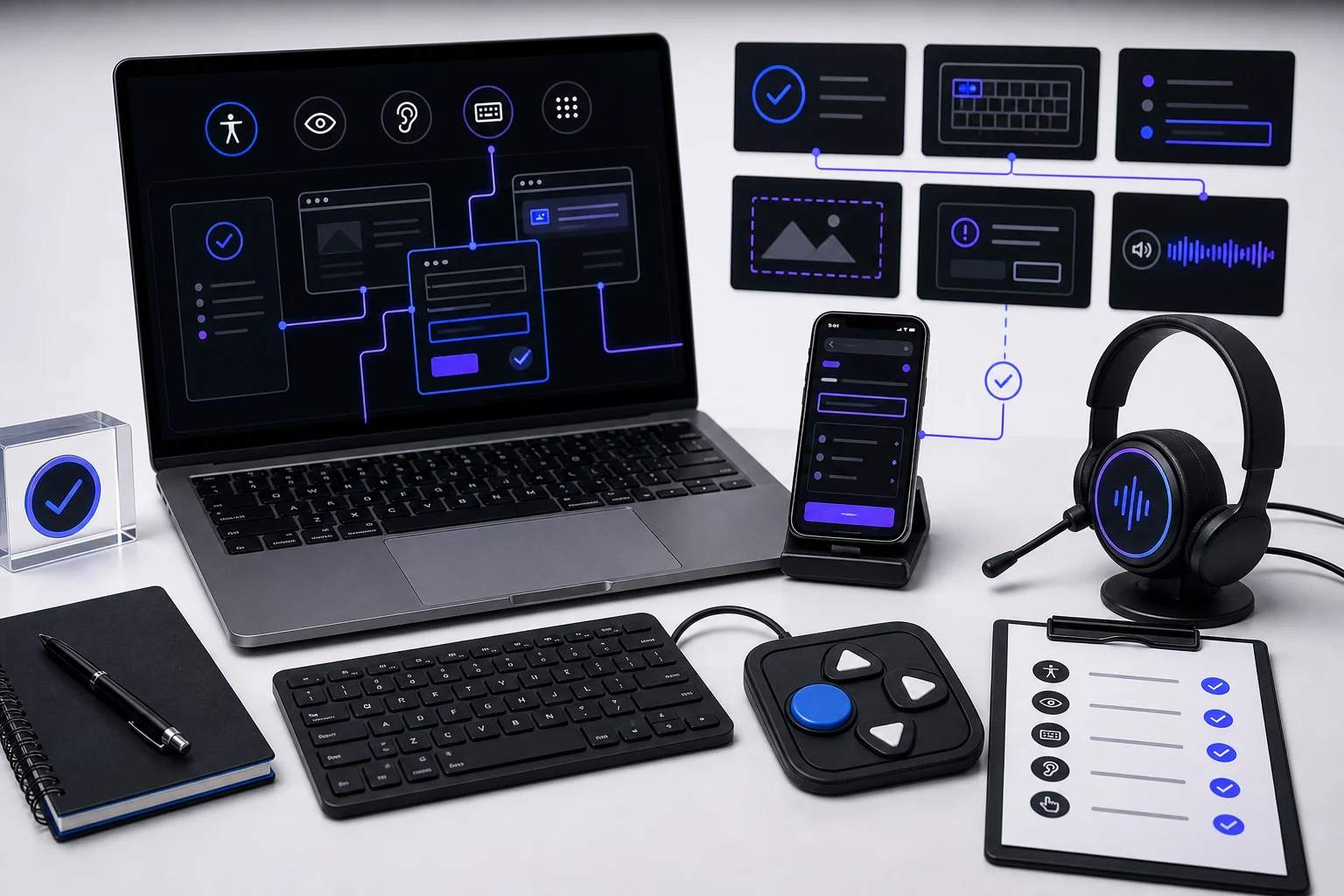
Manual testing coverage that automated tools miss
Keyboard, screen reader, forms, focus, visual content, and dynamic state checks.

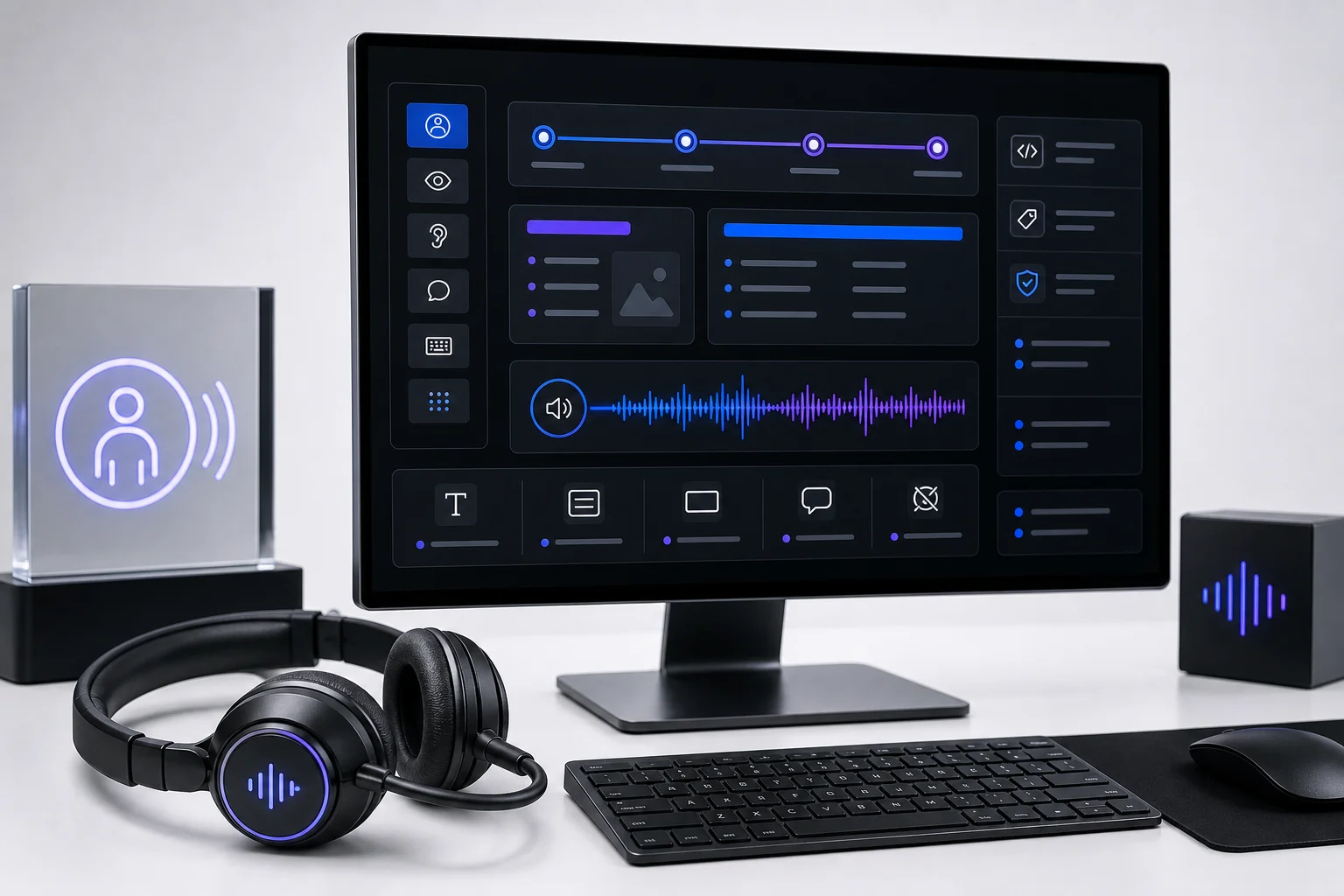
Automated scanners are useful for fast signal, but they cannot experience a product the way a keyboard user, screen reader user, low-vision user, or cognitively disabled user does. Manual testing fills that gap by validating the actual task path, not just the static code snapshot.
What this helps with
- Best for: QA teams, engineering owners, product teams, and compliance reviewers planning manual WCAG coverage.
- Outcome: a practical test map for barriers that automated tools miss or only partially detect.
- Use when: you need evidence for real user flows, assistive technology behavior, and release validation.
Build a manual coverage map
Manual coverage starts with the product experiences that users actually need to complete: navigation, search, forms, checkout, account access, scheduling, dashboards, documents, authentication, and support. Each path should be tested with keyboard-only interaction, screen reader output, visible focus, zoom, error recovery, and state changes.
The point is not to replace automation. The point is to use automation as one input, then manually validate the interactions, labels, instructions, and feedback that determine whether people can complete the task.
Testing principle: if a scanner reports no issue, the workflow may still fail. Confirm whether a user can perceive the control, understand its purpose, operate it, recover from mistakes, and know when the task is complete.
Validate keyboard and focus behavior
Keyboard testing checks whether all interactive controls can be reached, operated, and exited without a mouse. It also verifies that the visual focus indicator is visible enough to follow through the workflow.
- Tab through navigation, modals, menus, filters, carousels, forms, and embedded widgets.
- Confirm focus order matches the visual and logical reading order.
- Check that custom controls respond to expected keys such as Enter, Space, Escape, and arrow keys.
- Verify no keyboard traps occur in dialogs, overlays, cookie banners, calendars, or chat widgets.
Listen to screen reader output
Screen reader testing confirms whether names, roles, states, headings, landmarks, instructions, errors, and live updates are announced in a useful order. Automated tools can detect missing attributes, but they cannot reliably judge whether the spoken experience makes sense in context.
- Names: controls announce a clear accessible name that matches visible purpose.
- Structure: headings, landmarks, lists, and tables support fast navigation.
- State: expanded, selected, checked, invalid, and disabled states are exposed.
- Updates: search results, alerts, errors, and loading states are announced when needed.
Test forms and error recovery
Forms often pass partial automation while still failing users. Manual review should check labels, instructions, required-field indicators, input formats, autocomplete, validation timing, error summaries, field-level messages, and successful submission confirmation.
Retest with intentional mistakes. A user should know what failed, where it failed, how to fix it, and whether their previous input was preserved.
Confirm dynamic states and visual content
Modern interfaces change without full page loads. Manual testing should verify modals, drawers, accordions, tabs, toasts, infinite scroll, loading indicators, route changes, and disabled or pending states. These moments need focus management, announcements, and a clear path back to the task.
- Open and close states: focus moves into dialogs and returns to the triggering control when the dialog closes.
- Async feedback: loading, success, failure, and empty states are communicated without relying on color alone.
- Visual content: images, charts, icons, and media have text alternatives that match their purpose.
- Responsive states: zoom, reflow, mobile navigation, and sticky UI remain operable and readable.
- Retest evidence: findings include reproduction steps, assistive technology context, screenshots, and expected behavior.